That half-finished transition, perfectly timed beat drop, or AI-assisted concept can disappear faster than a trending sound changes. Knowing how to save video drafts is not just about convenience. It protects the time, creative energy, and audience momentum behind every short video you make.
A draft is your private editing space. It lets you record, trim, add effects, test captions, and rethink an idea before anyone sees it. But drafts are often tied to the app and device where you created them. If you clear storage, uninstall an app, switch phones, or lose access to your account, an unfinished post may not come with you.
The smart creator move is simple: save the draft inside the platform, then protect the original footage and key edit assets outside it. That gives you room to create boldly without betting everything on one tap of the screen.
How to Save Video Drafts in a Short-Video App
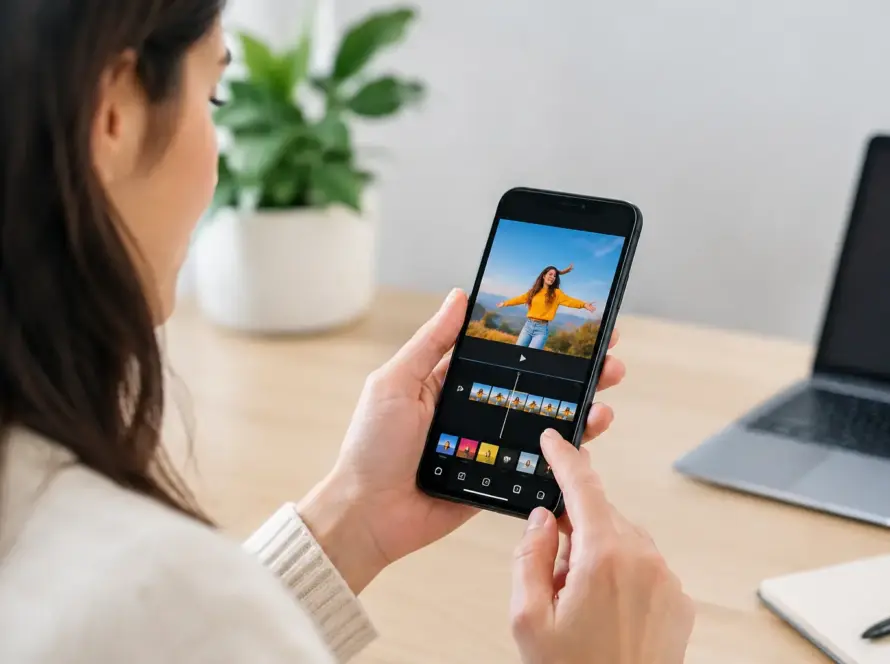
Most short-video apps follow a similar flow. Start a new post, record clips or upload footage, and make your edits as usual. Before selecting the final Publish or Post button, look for an option labeled Drafts, Save Draft, Save and Exit, Back, or a similar prompt.
Tap that option only after giving the app a moment to process your latest changes. On slower connections or older phones, closing the screen immediately after editing can mean the last caption change, filter, or clip trim does not get stored correctly. When possible, wait until you see a confirmation or return to your profile and check that the thumbnail appears in your Drafts area.
On Short Flixx, treat a draft as a creative workspace for testing AI video ideas, music choices, AR effects, captions, and privacy settings before your post goes live. Open your profile and find the Drafts section when you are ready to continue. Review every element before publishing, especially if the trend, sound, or story has changed since you first started editing.
A saved draft is usually visible only to you. It does not appear in your followers’ feeds, search results, hashtag pages, or your public profile until you publish it. That makes drafts useful for creators who want to batch content, prepare premium ideas, or capture a spontaneous concept before the moment passes.
Know What a Draft Actually Saves
A draft can save more than the raw video, but it depends on the app. It may preserve your selected clips, trims, filters, text overlays, stickers, cover image, caption, hashtags, and posting controls. Some apps also retain music timing, voiceovers, effects, and drafts created from templates.
Still, do not assume every part is permanent. Licensed music may become unavailable. An effect can be retired after an app update. A template can change, and a draft that relied on a live trend may feel dated a week later. If a particular sound, visual effect, or caption timing is central to the post, capture a quick screen recording or note the details in your phone before you leave the editor.
There is another trade-off: a draft is editable, while an exported video is more portable. Exporting a copy to your gallery preserves the visible video, but it may flatten the project into one file. You may not be able to adjust individual text layers, swap the music, or change an AR effect after export. Save both when the post matters.
Build a Backup Habit Before You Need One
The safest workflow begins before you edit. Keep your original clips in your phone gallery, cloud photo backup, or a clearly named folder. If you filmed three takes of a comedy sketch or dance sequence, retain all three until the final version is published and performing well. The outtake you almost deleted may become the stronger hook for your next post.
For bigger projects, create one folder per concept. Name it with a date and a short idea, such as “Oct 09 – Gaming reaction” or “Festival outfit transition.” Store the raw clips, cover image, voiceover, and any approved graphics there. This takes less than a minute and prevents the familiar scramble of searching through hundreds of camera-roll files.
Use these four protections for drafts you genuinely do not want to lose:
- Save the in-app draft so you can return to the editable version.
- Keep original footage in your gallery or backed-up photo storage.
- Export a preview copy after a major editing milestone, if the app allows it.
- Record the caption, hashtag set, sound name, and posting idea in a notes app.
This setup is especially useful when you create across multiple sessions. You may shoot during the day, edit at night, then publish when your audience is most active. Your creative work should survive that gap.
Avoid the Common Ways Drafts Get Deleted
The most common mistake is deleting the app to free up storage. In many cases, drafts are stored locally on the phone rather than fully synced to an account. Deleting the app can remove those files permanently, even if you log back into the same profile later.
The same risk applies when clearing an app’s data or cache. Your phone may suggest it as a quick fix for performance issues, but read the warning carefully. Clearing temporary cache and clearing all app data are not always the same action. If the screen says it will reset the app, remove files, or erase local storage, pause and back up your footage first.
Switching phones requires planning too. Do not assume drafts will transfer through a standard phone migration. Before moving to a new device, publish anything that is ready, export important previews, and make sure the raw clips are backed up. Then sign in on the new phone and check your account settings before removing anything from the old one.
Low storage can also cause trouble. When your device is nearly full, an app may struggle to render effects, save video changes, or create a draft thumbnail. Keep enough free space for footage, editing files, and exports. If you make high-resolution videos, that buffer needs to be larger than you think.
Make Drafts Work for Your Posting Strategy
Drafts are not just unfinished videos. They can become your content pipeline. Batch-record several posts when you have good lighting, a strong idea streak, or access to a location. Save each one as a draft, then finish captions and publish them over several days.
This approach gives you more control without making your content feel overly planned. A musician can save multiple snippets around a new track. A gamer can prepare reactions after a major match. A lifestyle creator can shoot outfit transitions in one session and release them when conversations around a trend are active.
Before posting an older draft, watch it with fresh eyes. Check whether the opening second still grabs attention, whether the audio still fits, and whether the caption sounds current. Trend-based content has a shorter shelf life than storytelling, tutorials, humor, or personal updates. Sometimes the right decision is to re-edit an old draft instead of posting it exactly as it was.
Privacy is worth another check. Drafts help you avoid accidental publishing, but the final posting screen is where you decide who can see the video and how people can interact with it. Review your audience setting, comments, remix permissions, and any other visibility controls before you post. A video meant for a close circle needs a different setup than a discovery-focused post designed to reach new viewers.
If Your Video Draft Is Missing
First, do not uninstall the app or clear its data. Close and reopen it, confirm that you are signed into the correct account, and look through your Drafts section carefully. If the draft still does not appear, check whether you created it on another device.
Next, look in your gallery, recently deleted folder, and cloud photo backup for exported clips or original footage. Even if the editable draft cannot be recovered, those files can help you rebuild the video much faster. Check your notes for the caption and sound details, too.
For future posts, use a simple rule: the more time, money, collaboration, or creative effort a video requires, the more than one place it should exist. Keep the draft for flexibility, save the footage for security, and export a version when you need a record of the finished edit.
Your next great post does not need to be rushed into publishing. Save it, protect it, return with a clearer perspective, and give the idea the finish it deserves.