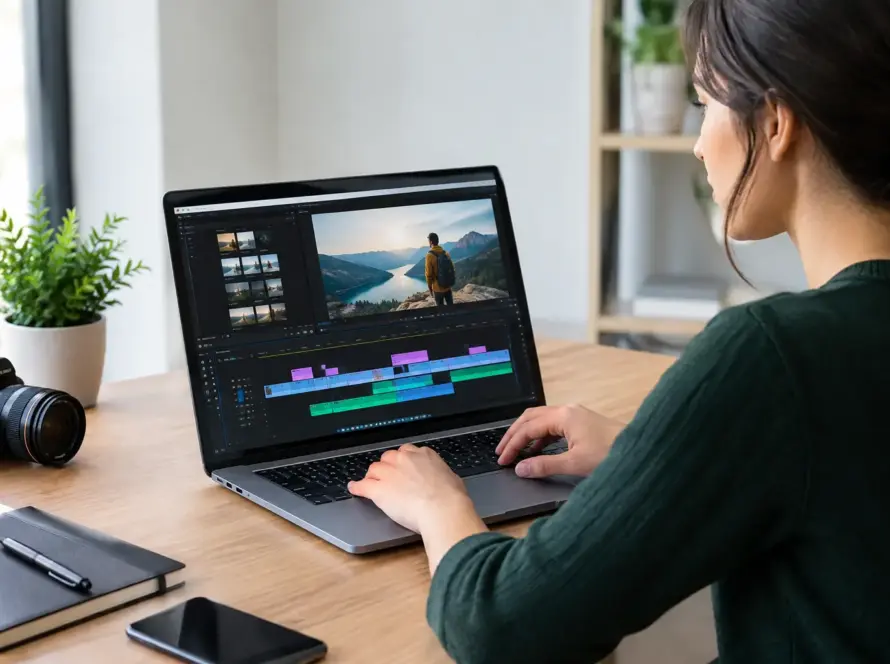
A killer transition, an AR effect that lands perfectly, or a beat drop timed to the frame can lose its impact fast when the upload looks blurry, blocky, or out of sync. Upload quality optimization is the practical work behind polished short-form video: preparing your footage so viewers see the creative choices you made, not the compression artifacts you did not intend.
For creators building an audience through fast-moving feeds, quality is not about chasing cinema-level specs. It is about making smart choices before you post. The goal is a video that looks clear on a phone screen, sounds clean through earbuds, loads without frustrating delays, and holds up after a platform processes it.
Why upload quality changes how people watch
Short videos earn attention in the first seconds. If text is fuzzy, skin tones look unnatural, or the music sounds distorted, viewers may swipe before your idea has a chance to land. Quality also shapes trust. A sharp makeup tutorial, gaming clip, comedy sketch, dance video, or product showcase feels more intentional when the image and audio are stable.
There is a trade-off, though. Bigger files can preserve more visual detail, but they take longer to upload and may still be compressed by the platform. Extremely high resolution does not automatically create a better result. For mobile-first content, consistency matters more than sending the largest possible file.
Start with a clean source video
Upload quality optimization begins before export. A platform cannot restore detail that was never captured, so give your edit a strong source file to work with.
Record in good light whenever possible. Natural window light, a soft lamp, or a basic ring light can reduce visual noise and help your camera capture cleaner detail. Low-light footage often looks grainy before upload, then becomes even softer after compression. If you are filming indoors at night, prioritize light before adding heavy filters or sharpening effects.
Clean your camera lens too. It sounds small, but fingerprints create haze that no export setting can fix. Lock focus and exposure when your camera allows it, especially when recording close-ups, food, art, fashion, or products. Constant focus hunting can make a clip look cheap even at high resolution.
For talking videos, stabilize the phone with a tripod, stand, or a firm grip. Fast handheld movement creates more changing information in every frame, which is harder for compression to preserve. Movement is still powerful when it serves the idea – just avoid accidental shaking.
Choose the right frame from the beginning
Vertical 9:16 footage is the natural fit for full-screen short-form viewing. Recording vertically means your subject fills the frame without awkward crops, black bars, or a late-stage zoom that reduces sharpness.
Keep key details away from the outer edges. Interface buttons, captions, descriptions, and engagement tools can cover parts of the screen. Place faces, products, and on-screen text near the center area, with enough breathing room to stay visible across different devices.
If you are repurposing horizontal footage, do not simply crop and hope for the best. Reframe it around the main action. A gaming highlight may need the face cam and gameplay area repositioned. An interview clip may need a tighter crop and burned-in captions. The best format depends on what viewers need to understand instantly.
Export settings that protect short-video quality
Your editor’s export screen can feel technical, but a few settings make the biggest difference. For most short videos, export at 1080 x 1920 pixels in vertical format. This is a strong balance between detail, file size, and mobile viewing. If you filmed in 4K, exporting in 1080p can still look excellent and may avoid oversized uploads.
Match the frame rate of your original footage. If you shot at 30 frames per second, export at 30. If you shot action footage at 60 frames per second and want smooth movement, keep 60 when the platform supports it. Converting frame rates without a reason can create stutter, ghosting, or an unnatural look.
Use MP4 with H.264 video encoding when available. It is widely supported and creates efficient files for mobile sharing. For audio, AAC is a dependable choice. You do not need to memorize every codec, but exporting in familiar, broadly compatible formats reduces the risk of playback problems.
Bitrate deserves a little attention. Too low, and gradients, hair, confetti, water, and fast movement can turn into visible blocks. Too high, and your file becomes unnecessarily heavy. A moderate-to-high bitrate for 1080p footage is usually the practical choice. Let your editor’s recommended 1080p setting guide you unless you know your footage needs more control.
Avoid exporting more than once
Every export can add compression. Editing a downloaded clip, exporting it, uploading it elsewhere, downloading it again, and then posting the result creates multiple opportunities for quality loss. Work from the original clips whenever possible and keep one high-quality master file saved on your device or cloud storage.
This matters even more for AI-generated video, photo-to-video creations, and AR-heavy edits. These formats can include fine textures, animated lighting, motion effects, and generated details that are sensitive to compression. Export once after the final edit instead of repeatedly saving over the same video.
Make text, effects, and audio survive compression
The details that make a short video feel next-generation can also be the first details compression damages. Thin fonts, tiny captions, subtle gradients, and fast AR particles may not look the same after processing.
Use bold, readable text with strong contrast against the background. Add a light shadow, outline, or semi-transparent text panel when your footage is busy. Keep captions large enough to read without zooming. This is not just an accessibility choice – it helps viewers understand your message when they are watching quickly or with sound off.
Be careful with aggressive filters. Heavy smoothing, over-sharpening, and extreme color correction can make artifacts more obvious after upload. A slight adjustment to brightness, contrast, and color temperature often looks more professional than a dramatic edit that crushes shadows or blows out highlights.
Audio should be treated as part of video quality, not an afterthought. Record voiceovers in a quieter space, keep your mouth reasonably close to the microphone, and avoid peaking levels that cause crackling. If you use music, lower it enough that spoken words stay clear. A clean voice and a well-timed track can make a simple clip feel far more watchable.
Optimize the upload itself
A good file can still suffer when the upload environment is unreliable. Use a stable Wi-Fi connection or strong mobile data signal before posting larger videos. If your connection keeps switching, the upload may stall, fail, or process unpredictably. It is better to wait a few minutes for a reliable connection than rush a post that does not display correctly.
Do not close the app or put your phone into an aggressive battery-saving mode while a large upload is still processing. Check that the video has finished publishing, then watch it from the feed as a viewer would. Look for soft text, delayed audio, unexpected crops, or a quality setting that needs adjustment next time.
On Short Flixx, creators can pair crisp uploads with music, AI-powered formats, and immersive AR effects without letting the technology overpower the idea. The effect should amplify the punchline, mood, story, or transformation. If the viewer only notices the effect and misses the message, simplify the edit.
A repeatable upload quality optimization workflow
You do not need a complicated production routine for every post. Build a fast check before publishing: record in good light, edit in a vertical frame, keep captions readable, export a 1080p MP4 at the original frame rate, and upload over a stable connection. Then watch the published version once before promoting it across your community.
As you create more, notice where quality drops in your own process. Maybe your front camera needs more light, your editor is exporting at a low setting, or your effects are too fine for fast-motion footage. Small fixes compound across every video you publish.
Your next great post does not need more gear. It needs a clear idea, a clean source file, and an upload that lets people experience every beat exactly as you intended.